Releases:
Explore the latest feature and updates to enhance your CloudLabs experience:
Section | Link |
|---|---|
Confirmation Popup for Lab Decommissioning | |
Idle Timeout Configuration Sync for Active Labs | |
Disk Optimization for Stopped VMs | NA |
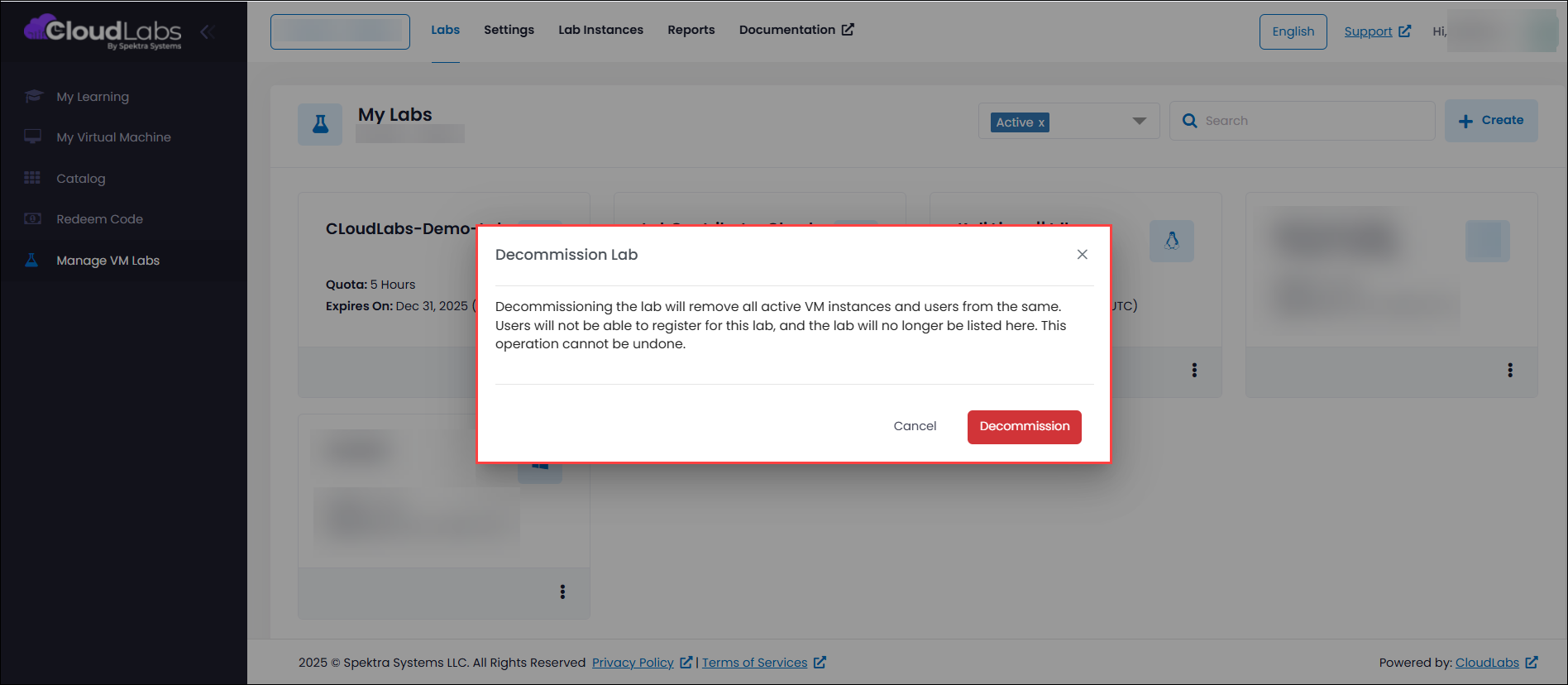
Confirmation Popup for Lab Decommissioning
A confirmation prompt has been introduced in the lab decommissioning workflow to improve clarity and control. The prompt clearly informs users that proceeding with decommissioning will result in all deployments associated with the lab will be deleted. This additional confirmation step ensures users fully understand the impact of the action and helps prevent unintended or accidental lab decommissioning.
Idle Timeout Configuration Sync for Active Labs
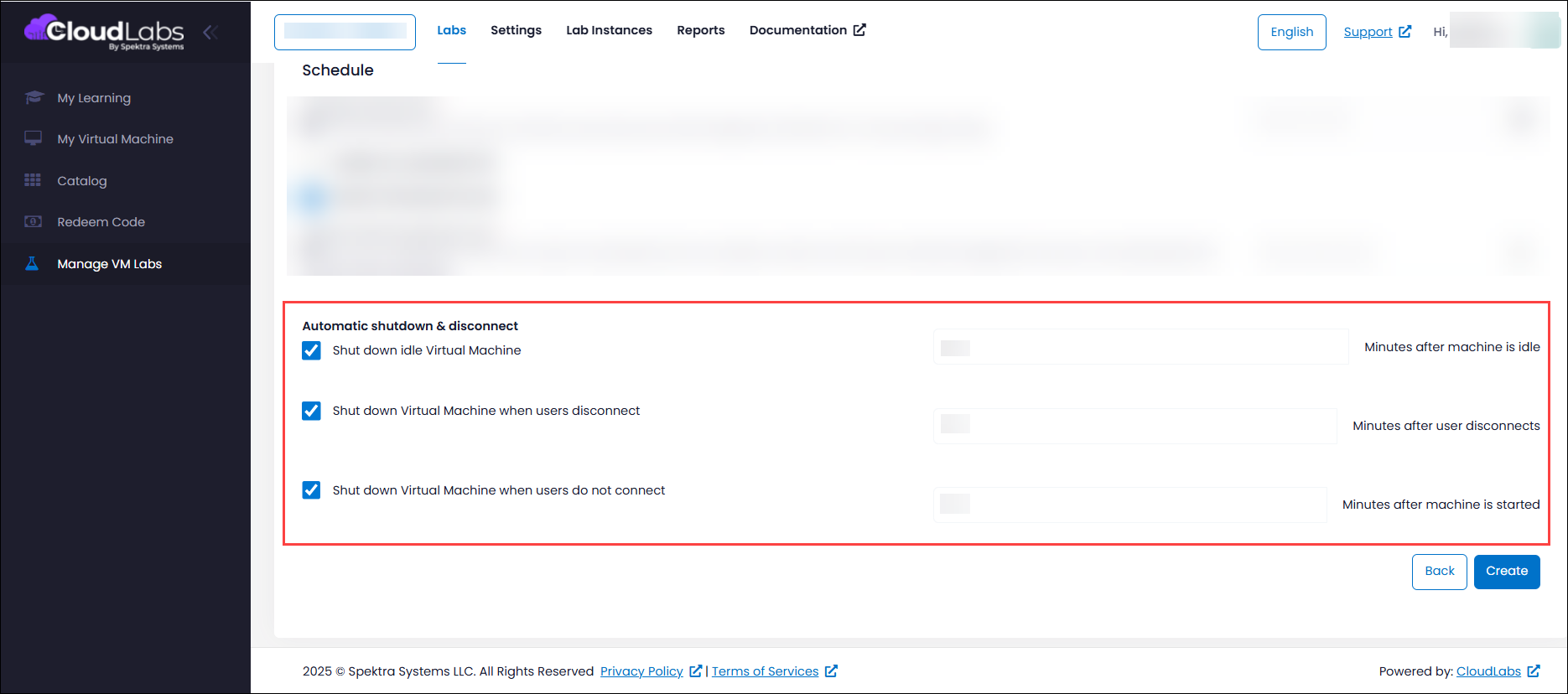
Idle timeout settings now apply consistently across both new and existing deployments, ensuring unified timeout behaviour at the lab level. Previously, changes to idle timeout settings affected only newly provisioned deployments, but with this enhancement, updates can be applied at any time and will take effect across all active VM deployments within the lab. Even if the Idle Tracker option was not enabled during lab creation, it can be turned on later after the lab and instances are created. Once the Idle time out settings are enabled and the lab settings are updated, the Idle Tracker tool is automatically installed on all VMs typically within less than five minutes and immediately begins monitoring idle activity based on the configured timeout settings.
Disk Optimization for Stopped VMs
Disk optimization is now available and can be enabled on request to automatically manage disk tiers based on VM state. When a VM is stopped, its disks are automatically downgraded to Standard HDD, helping reduce storage costs during idle periods. Once the VM is restarted, the disks are seamlessly upgraded back to the disk type defined in the lab configuration. This enhancement ensures cost efficiency without impacting performance when the VM is in use.