Releases:
Explore the latest feature and updates to enhance your CloudLabs experience:
Section | Link |
|---|---|
Customised privacy statements | NA |
RDP Over HTTPS for Linux machines | |
LTI launch URL in the List Lab Page | NA |
Tenant-specific roles | |
Enhanced Deployment and Connectivity Experience | NA |
Customised privacy statements
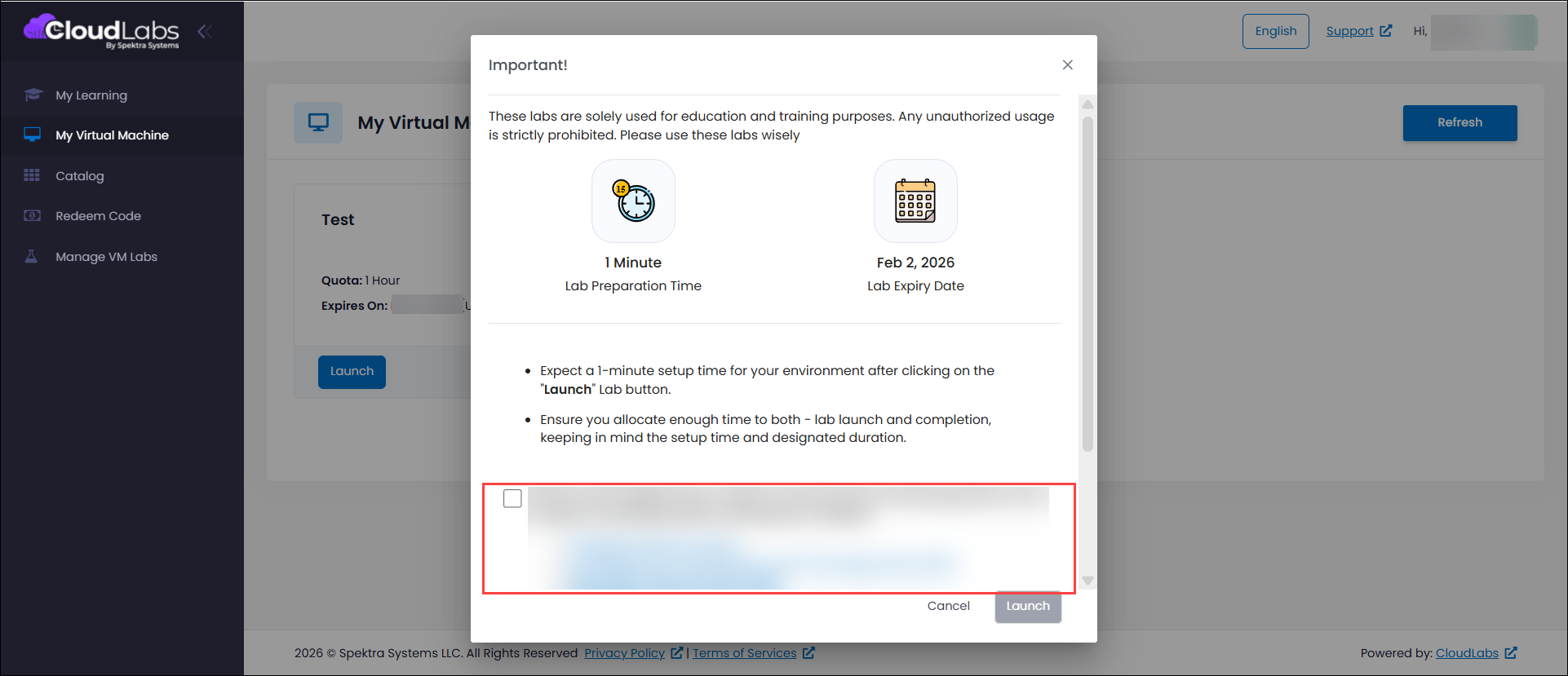
On the My Virtual Machine page, when an end-user clicks Launch, a pop-up appears displaying a custom privacy statement. Alongside the statement, a checkbox is provided which the user must select before proceeding. This ensures that users explicitly acknowledge and accept the privacy terms before launching their lab instances. The feature is only active when a Partner-level custom privacy statement is configured, giving organizations the flexibility to enforce compliance and communicate specific privacy requirements to their users. By requiring this acknowledgment, the system adds an extra layer of transparency and accountability, while guiding users to proceed safely and responsibly with their lab activities.
RDP Over HTTPS for Linux machines
The Web Connect feature for Linux machines now supports both RDP and SSH access, giving users flexible options for connecting to their lab instances. When SSH is selected, users can access the Linux VM directly through SSH over Web Connect. If RDP is selected, the VM will launch using RDP over Web Connect, providing a familiar remote desktop experience. In cases where both RDP and SSH are selected, RDP is the default connection via Web Connect, while users who prefer SSH can still connect using their local command-line interface.
It is important to note that the Linux image must include a compatible RDP package for RDP connections to work properly. Ensuring this package is installed allows users to seamlessly access the VM through RDP without issues, while retaining the flexibility to use SSH if needed. This setup ensures a secure, reliable, and user-friendly experience for managing Linux lab instances.
.png)
LTI launch URL in the List Lab Page
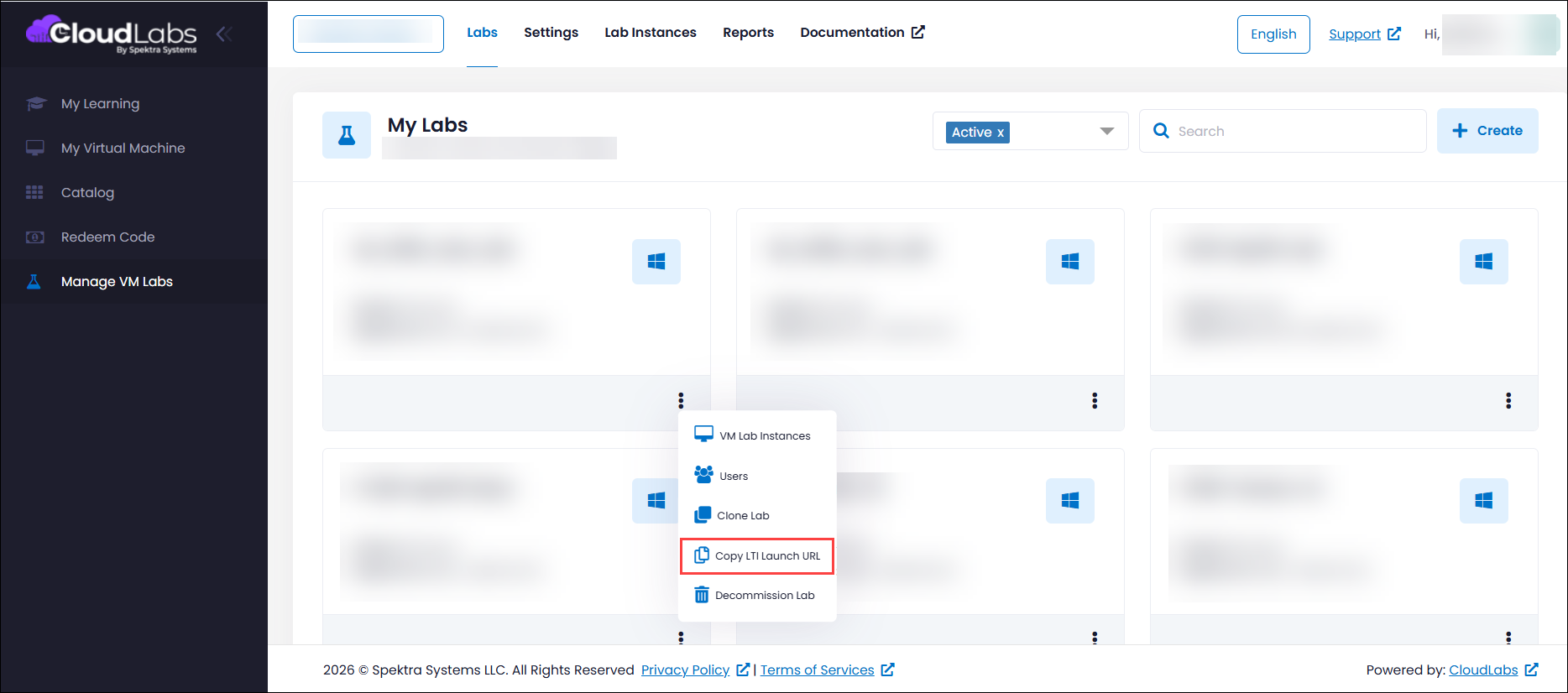
Navigating to the dashboard just to get the LTI launch URL can be time-consuming. To simplify this, we’ve added the ability to copy the LTI launch URL directly from the List Lab page. Now, users can quickly access the URL without leaving the lab list view. Simply click on the ellipses (…) next to the lab, select “Copy LTI Launch URL”, and the URL is copied to your clipboard instantly. This small but powerful enhancement improves workflow efficiency, making it faster and easier for instructors and users to share and launch lab content through LTI.
Tenant-specific roles
With tenant-specific roles, users who belong to multiple tenants experience a seamless and secure access experience. When a user accesses a particular tenant, they are automatically assigned the roles associated with that tenant, ensuring that permissions and access rights are applied correctly. This approach allows organizations to manage multi-tenant environments efficiently, providing users with the appropriate access for each tenant without conflicts or confusion.
Enhanced Deployment and Connectivity Experience
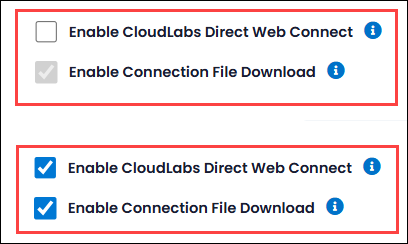
The deployment experience has been improved by automatically setting the Download Connection File option as the default and disabling it when Direct Web Connect is not selected, ensuring a clearer and more guided connection setup. In addition, users can now remove failed deployment attempts directly from the Lab Instance page, making it easier to manage lab resources and maintain a clean, organized environment.