Overview
This article guides you through the process of adding users to CloudLabs VM Labs with different roles. With global admin account privileges, you can create, manage, and experience complete access to your CloudLabs VM Labs services. To add any user here, you need Global Admin privileges to the CloudLabs portal.
To know more about roles available on CloudLabs, refer to CloudLabs Identity and Access Management.
Users can be granted access at two different scopes:
Tenant (Global) level : Access applies to the entire CloudLabs tenant and across all labs.
Lab level : Access applies only to specific lab(s) the user is assigned to.
Tenant-Level Access
Grant tenant-level roles when:
A user needs global oversight or administrative access on the CloudLabs tenant.
Users need to manage lab creation, quotas, custom images, virtual networks, VM SKU, etc., at the tenant level.
Users need to assign roles at both global and lab scopes.
Lab-Level Access
Grant lab-level roles when:
A user should work only within a specific lab.
They need to manage users, lab instances, schedules, etc., within their lab.
They should not access global tenant settings.
Add User to CloudLabs Tenant
Follow the below steps to add an admin to the CloudLabs portal:
Login to https://portal.cloudlabs.ai/.
Navigate to Manage VM Labs (1) > Settings (2) > IAM (3).
You can see the existing admin users and their details - Name and Email addresses.
Click on the Add User (4) button.

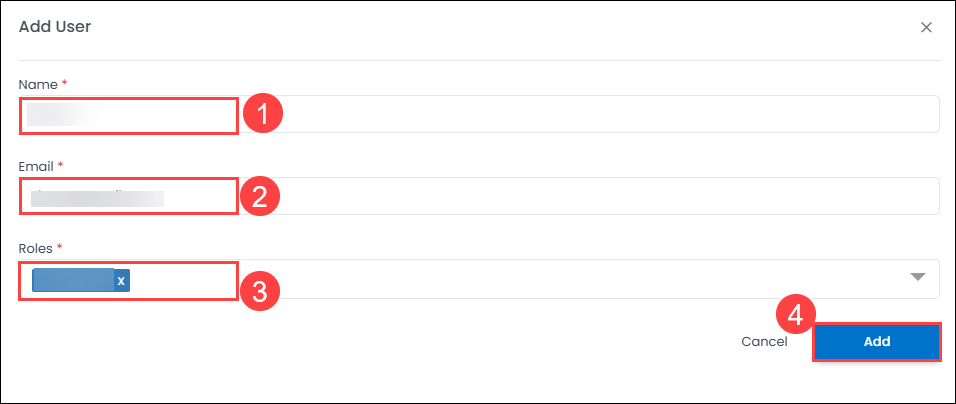
In the pop-up window, provide the Name (1) and Email (2), provide the required Roles (3) and click on Add (4).
Next Steps
In this article, you have learned about adding users to CloudLabs.
Once the user is added to CloudLabs with a specific role, the user can proceed to log into https://portal.cloudlabs.ai/ and perform the required action.
To add users to a specific lab, you can follow the steps here: Add and Manage Lab Users