Overview
Guided labs are specialized learning environments that are crafted to help users acquire and enhance their skills in Microsoft Cloud technologies and to be project ready.
What does a guided lab environment include?
Pre-provisioned Entra ID user account.
Pre-deployed virtual machine and Azure resources
Tailored step by step instructions guide
Smaller modules centered around specific topics
Secure and independent environment experience with custom RBAC and policy
Fixed time-bound duration of the lab environments.
Single or multiple labs launch attempts.
Launch CloudLabs Portal
Open any web browser.
In the address bar, enter:
https://ms-sandbox.cloudlabs.ai/Navigate to the CloudLabs Portal.

Access Support (If Needed)
Click on the Support icon in the portal.

Note: Use it for any queries or concerns regarding login.
Sign In to CloudLabs Portal
Click on Login / Sign Up.

Sign in using your Work or School account.
Note: If you are unable to log in using your Work or School account due to organizational policies or IT restrictions, please refer to the Guided Labs – Sandbox Portal Signup Experience Guide for detailed instructions on accessing the portal.
⚠ Personal email accounts are not recommended as per Microsoft Policy.
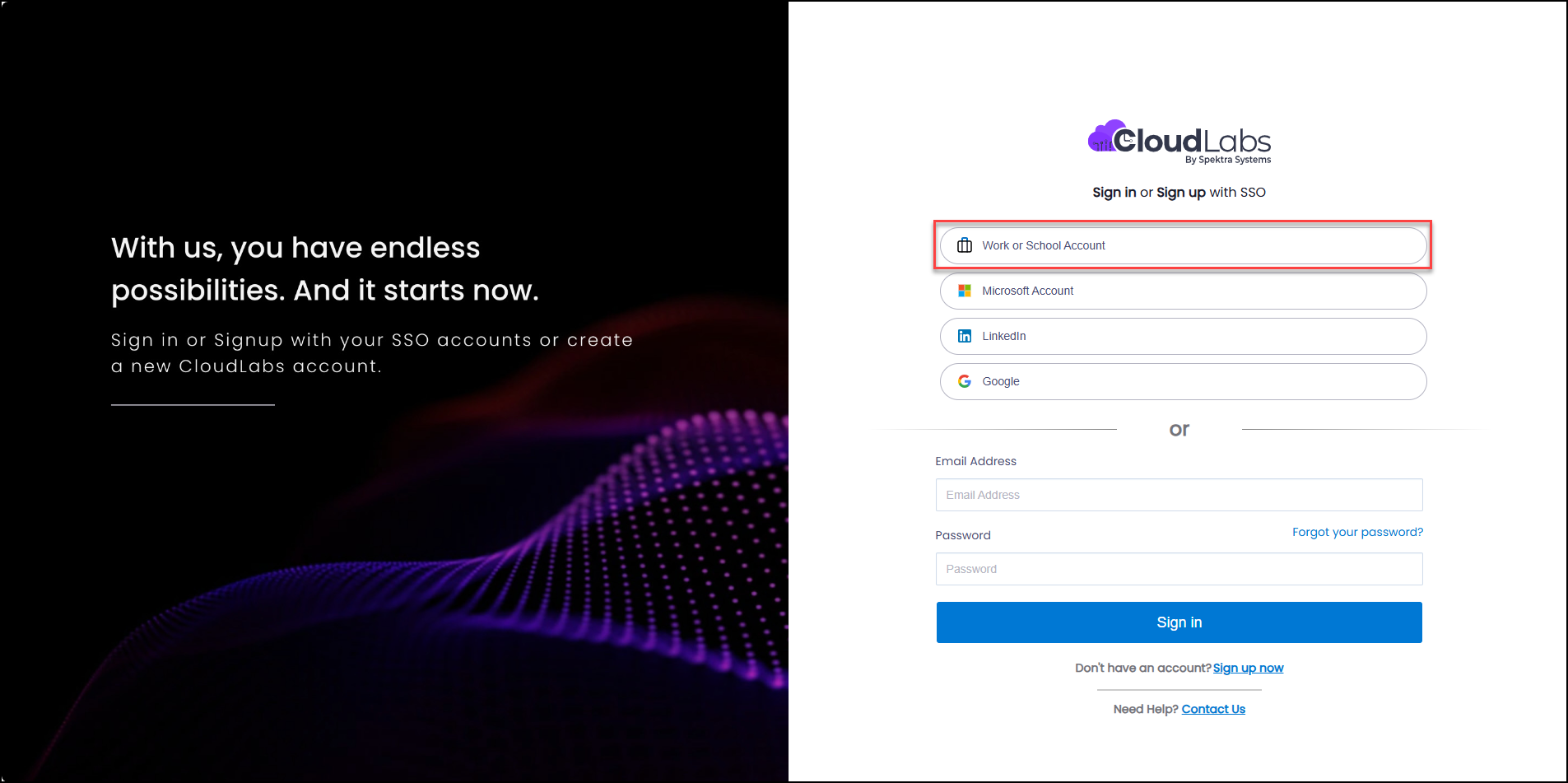
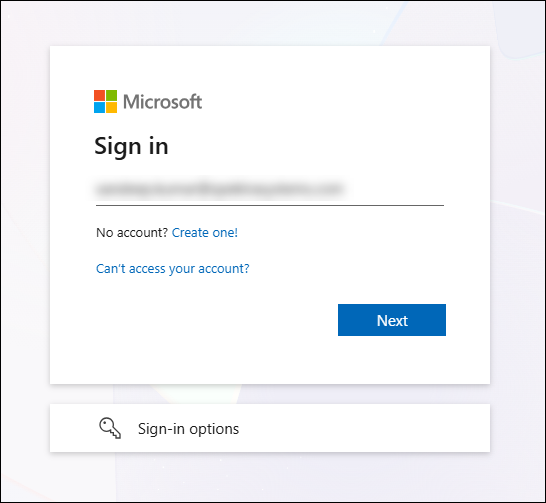
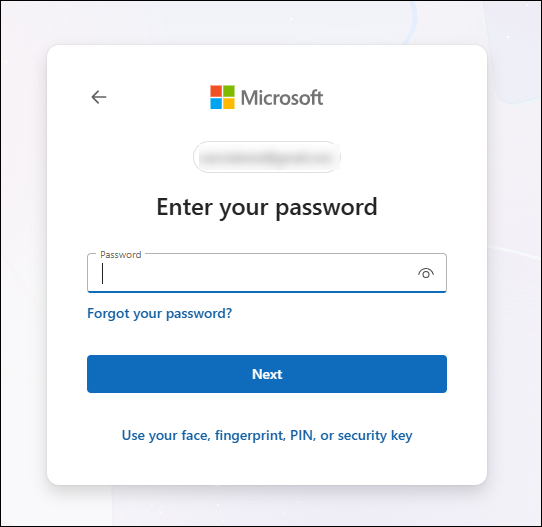
Once authenticated, you will be successfully logged in.
Once successfully signed in, you’ll be able to see below home screen/ dashboard.

Redeem Voucher
Navigate to the Redeem Voucher section.
Enter your Voucher Code.
Click Redeem.

Confirm the success notification indicating voucher redemption.

Select the Course
Click on My Learning.
Go to the Courses tab.
Select the course you want to take.

Get Started with the Course
Click on Get Started to begin the course.

Preview Sandbox Scenario
Click the Preview button.
Review the activities and tasks included in the guided lab.

Launch Sandbox Environment
Check the expected lab duration displayed above the Launch button.
Click Launch to start the guided lab.

Review the prompt message and confirm by clicking Launch again.

⚠ The lab environment will be automatically deallocated after the lab duration ends.
Provisioning Sandbox
Monitor the deployment time shown on the deployment page.

If deployment takes longer than mentioned in preparation timer, contact Support at: cloudlabs-support@spektrasystems.com
Lab Guide Instructions
After launch:
Virtual Machine appears on the left.
Lab guide appears on the right.
Follow step-by-step instructions provided in the lab guide.

Lab Environment Details
Select the Environment tab.
Use the provided Username and Password.
Log in to the Azure Portal.

Execute the Lab
Perform tasks as instructed in the lab guide.
Follow each step carefully in sequence.

Validate Lab Work
Click on the Lab Validation tab.
Click Validate after completing each task.
Review the result:
✅ Success – Task completed correctly
❌ Failure – Review error details, fix steps, and re-validate

Access Leaderboard
Click on Your Rank.
View your score and ranking.

Click More Details to see:
Current rank
Experience gained
Module-wise progress


Support
Click the Support icon anytime after login.

For additional queries, contact: cloudlabs-support@spektrasystems.com
FAQ
Can I access the Sandbox portal from any device?
Yes, you can access the Sandbox portal from any device with an internet connection and a web browser.
Can I access my personal email address for login?
No, you are recommended to use your work account only to login into sandbox portal.
What should I do if I have questions or problems?
You can click on the ‘Support’ icon in the CloudLabs portal for additional resources and assistance. Alternatively, you can contact cloudlabs-support@spektrasystems.com for further support.
What happens if the guided lab deployment time takes longer than expected?
If the deployment time is taking longer than expected, please reach out to Support for assistance.
How can I validate my lab work?
Validate your lab work by navigating to the ‘Validation’ tab in your lab environment and clicking on the ‘Validate’ button after completing each task.
How can I access the leaderboard?
You can access the leaderboard by clicking on the ‘Rank’ tab in the CloudLabs portal.
Why is the leaderboard important for users?
The leaderboard allows users to see their progress compared to others who have taken the same course or lab and encourages healthy competition to increase motivation to complete modules and labs.