Step-by-step guide to Purchase Guide
Overview
This guide walks you through buying and activating a hands-on lab on Sophos Academy Labs. The labs are self-paced, on-demand environments hosted on CloudLabs, with objectives aligned to Sophos certification competencies.
Step 1: Browse and Choose Your Lab
Go to Sophos Academy Labs.
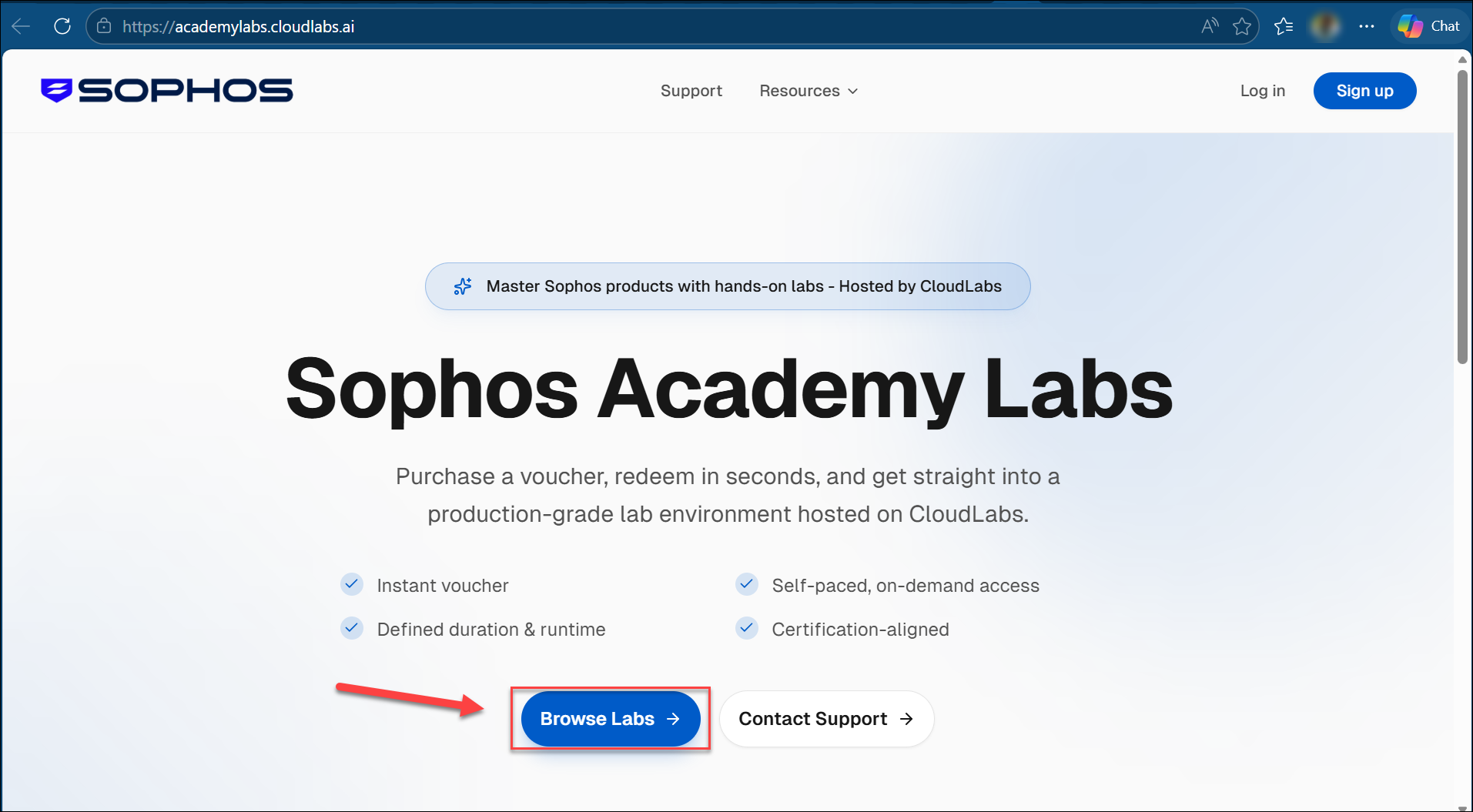
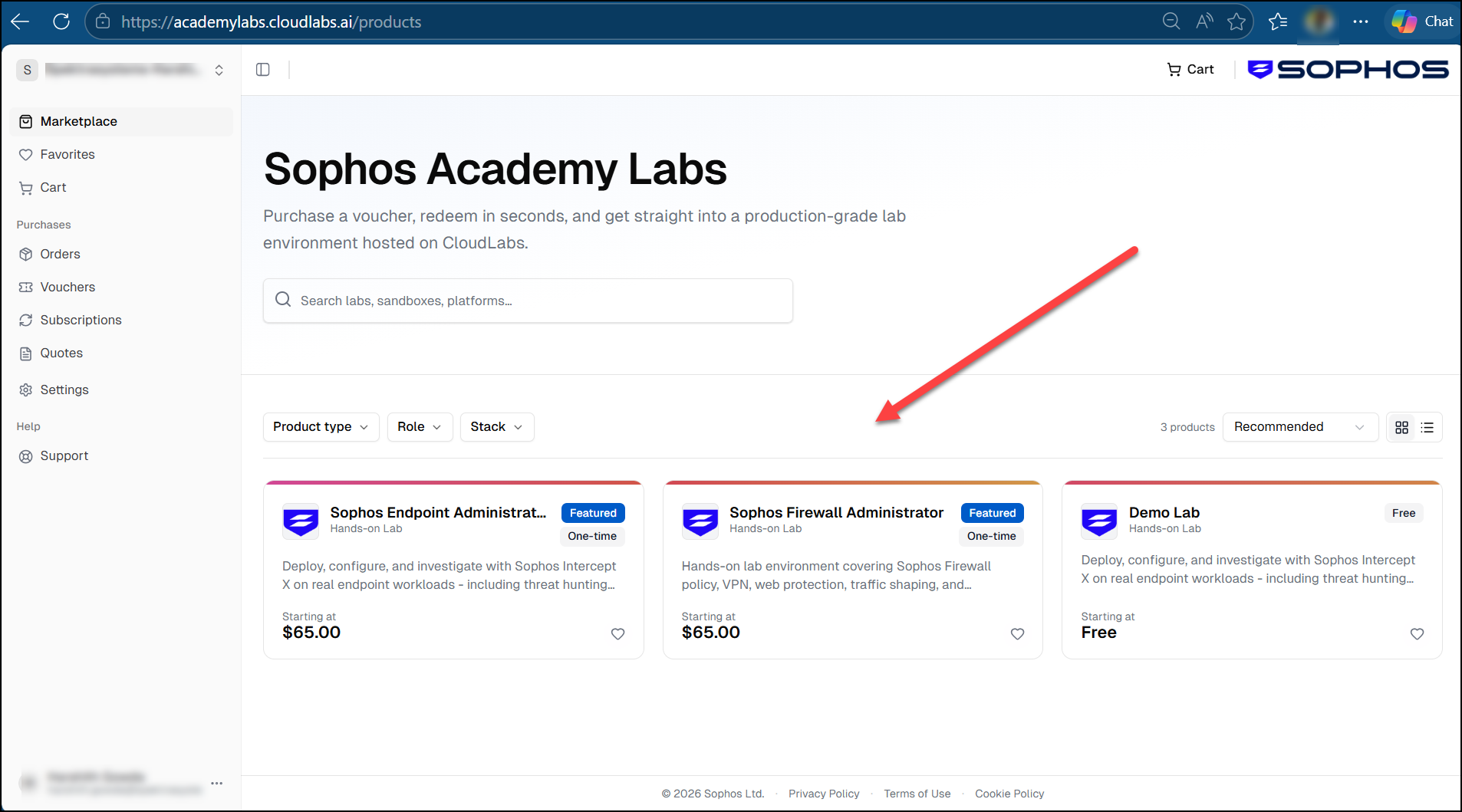
Click Browse Labs to open the catalogue at academylabs.cloudlabs.ai/products.
Review the lab details page which provides key information to help you evaluate the offering, including:
The certification or learning track the lab is designed to support (for example, Sophos Firewall Administrator or Sophos Endpoint Administrator).
Available lab variants, including the lab access duration and allotted runtime hours.
Pricing information for the selected lab variant.
An overview of the skills and concepts covered in the lab.
Technical specifications and included resources.
Select the lab you wish to purchase, specify the required quantity, and add it to your cart.
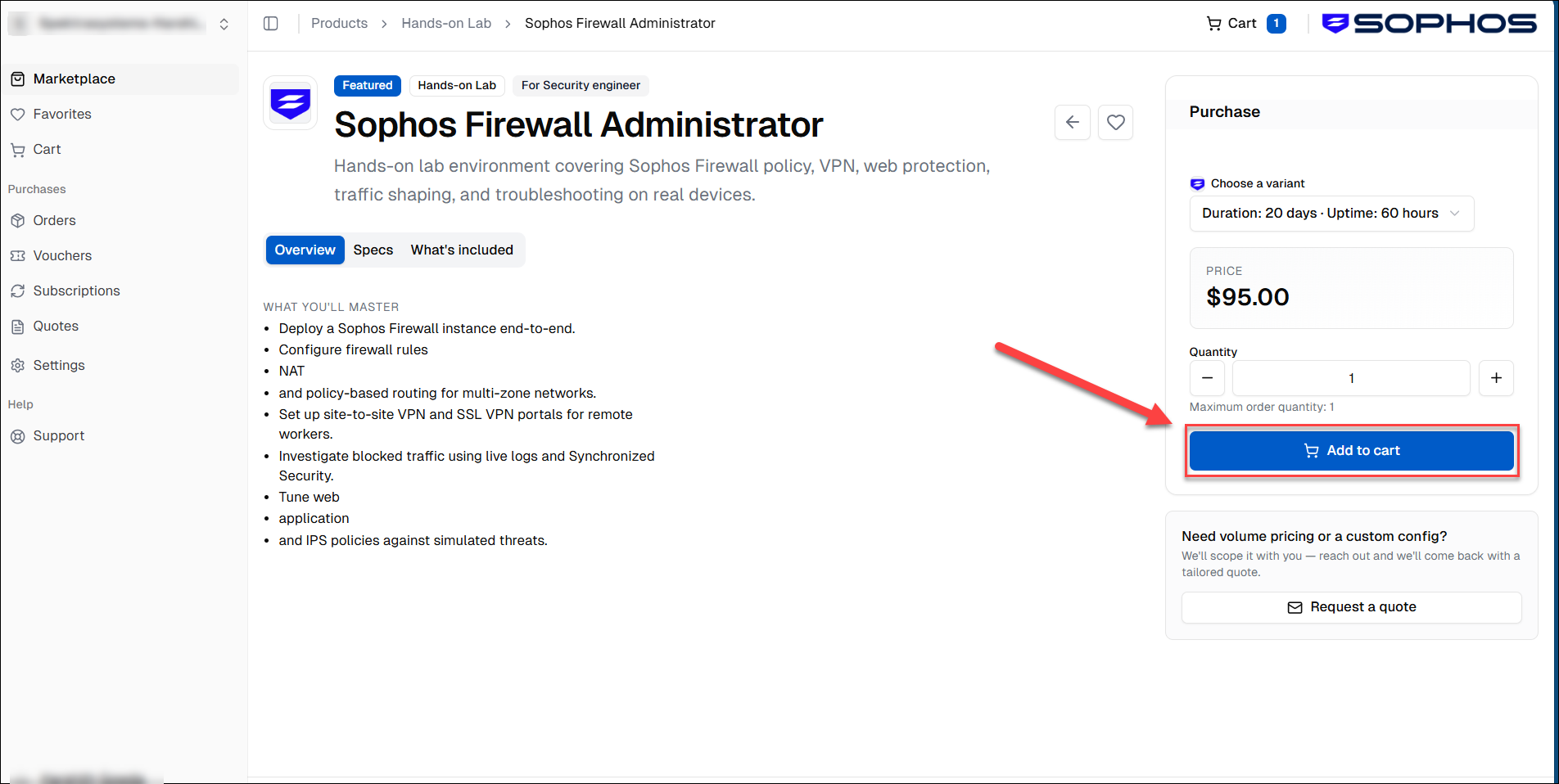
Once you have added all desired labs, proceed to checkout.
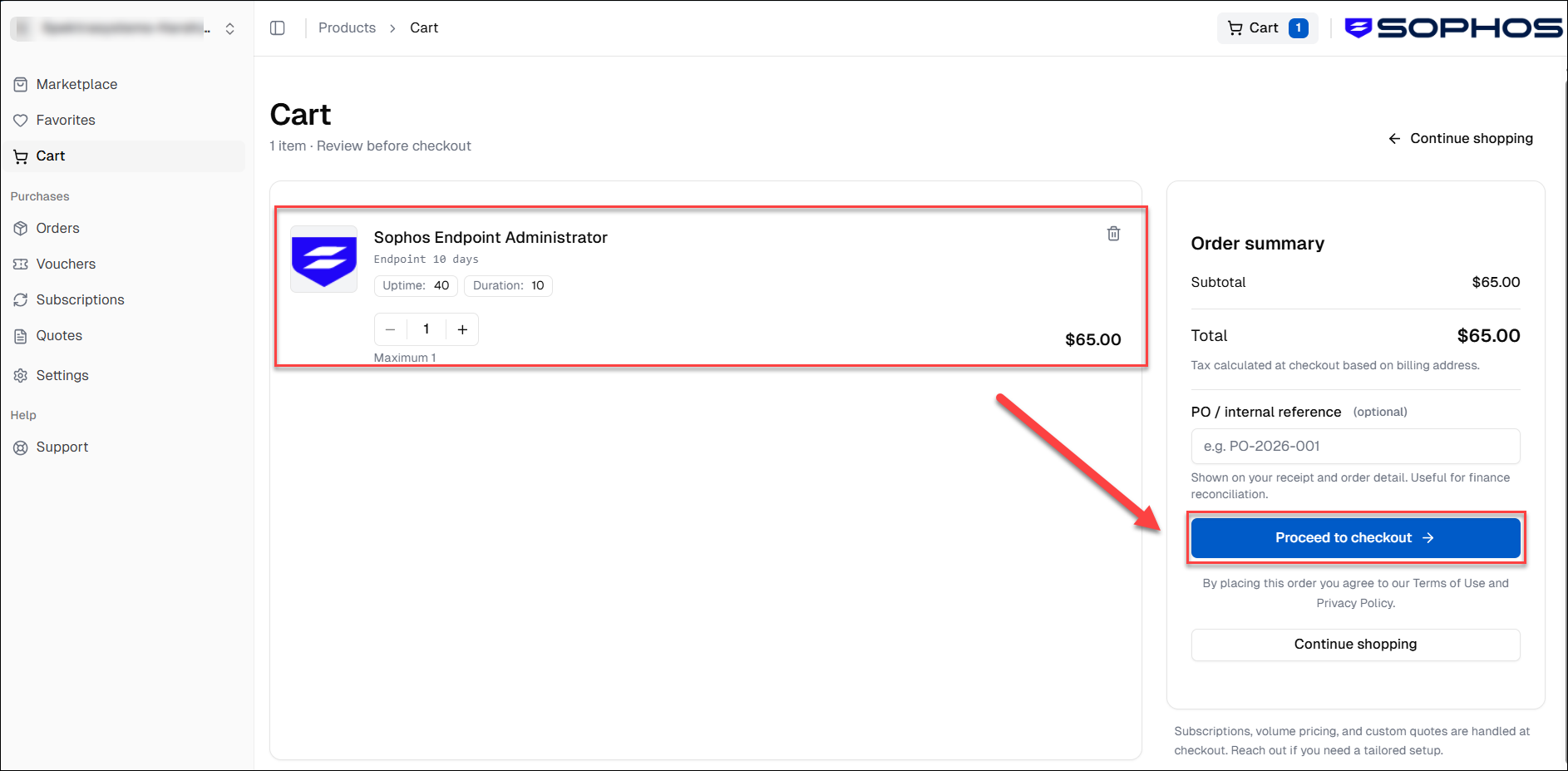
Step 2: Complete the Checkout Form
The checkout page is a secure, hosted payment form. Complete the following sections:
Payment details
Card number
Expiry date
CVC
Cardholder name
Country / region
Click Pay to complete your purchase.
Step 3: Payment Confirmation
After your payment is successfully processed, a confirmation screen will be displayed. This confirms that:
Your payment has been completed successfully.
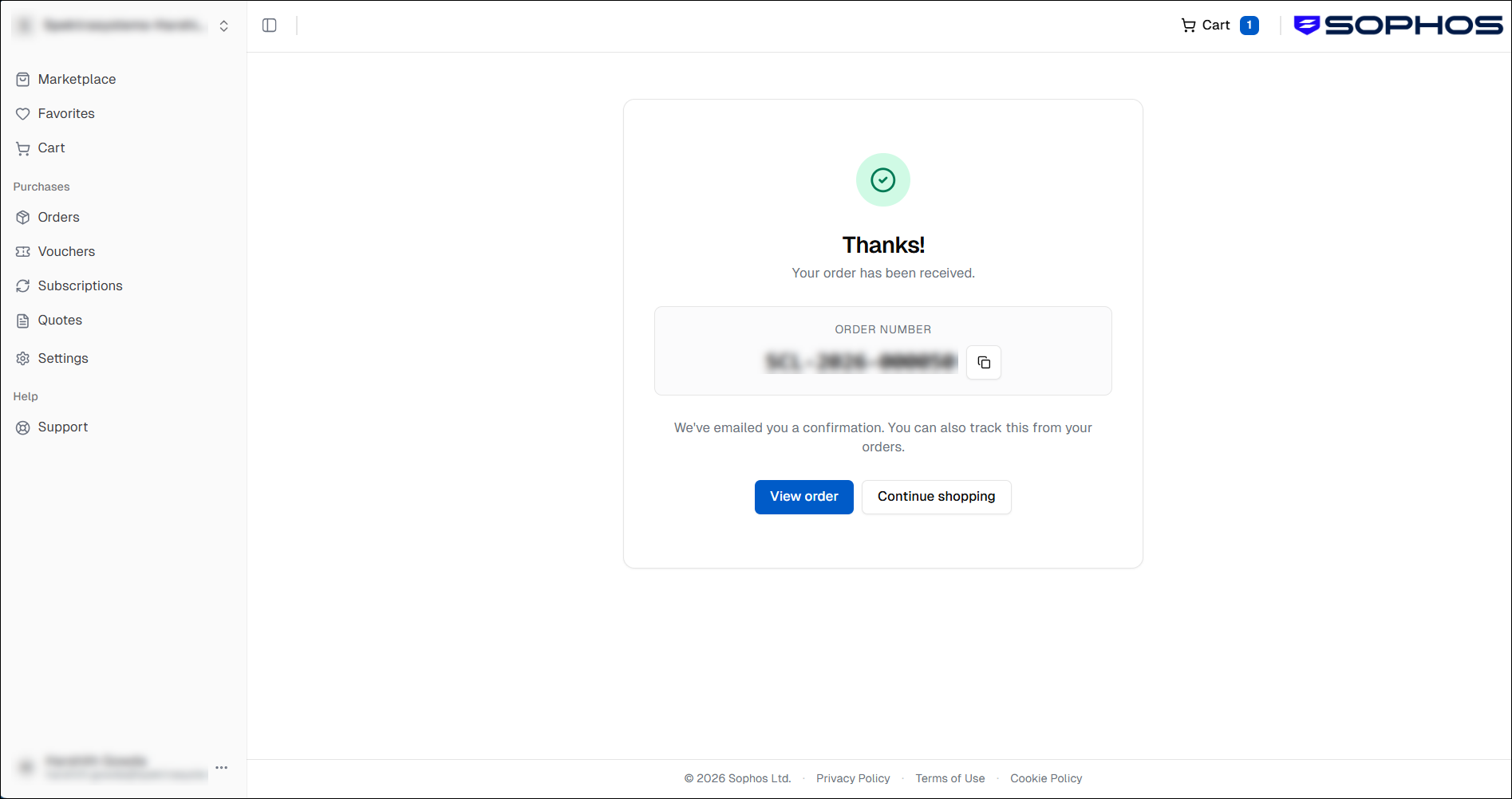
Your voucher code is available on the Vouchers page.
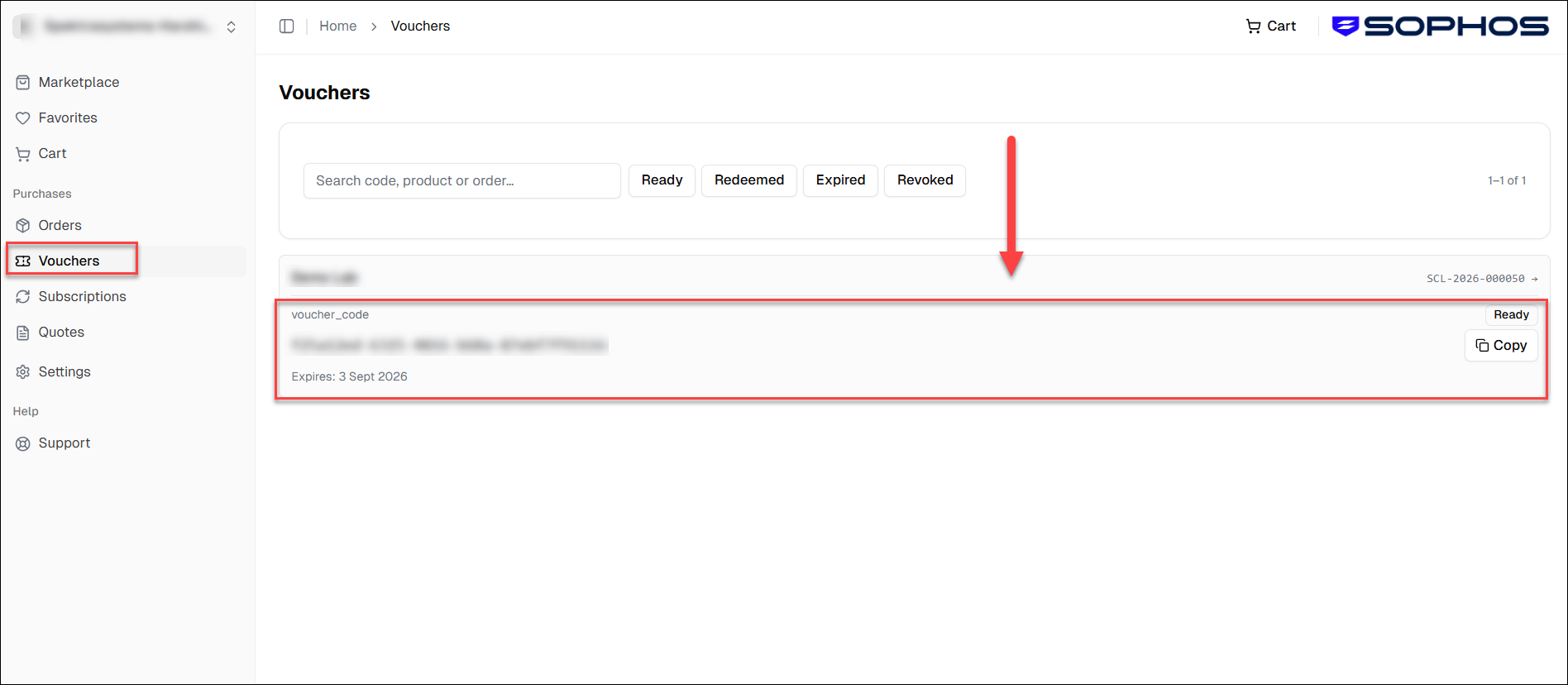
You will also receive a confirmation email from noreply@academylabs.cloudlabs.ai containing your order details and voucher code(s).
Step 4: Redeem Your voucher.
To redeem your voucher, please follow these steps:
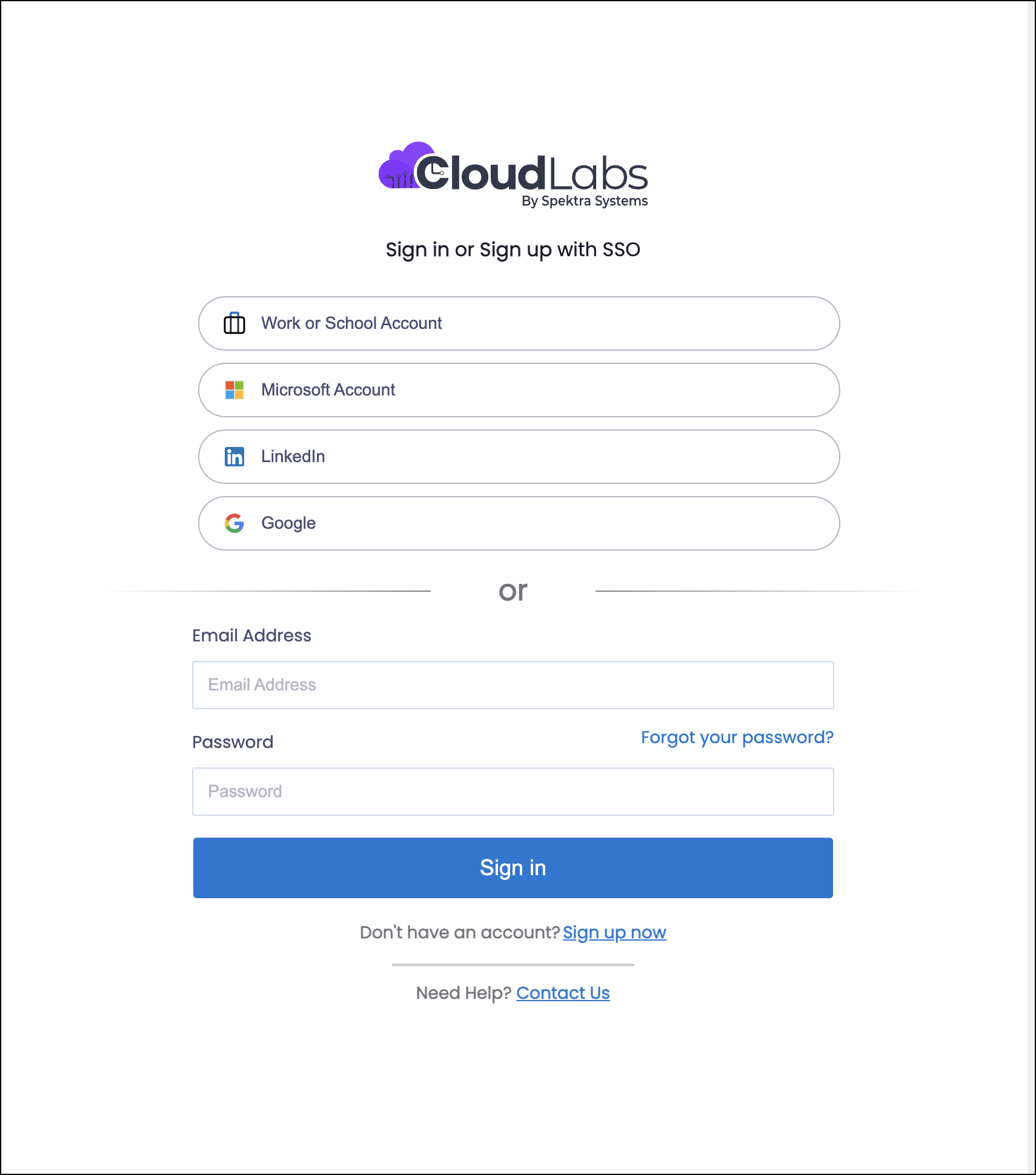
Click on Sign up or log in button.
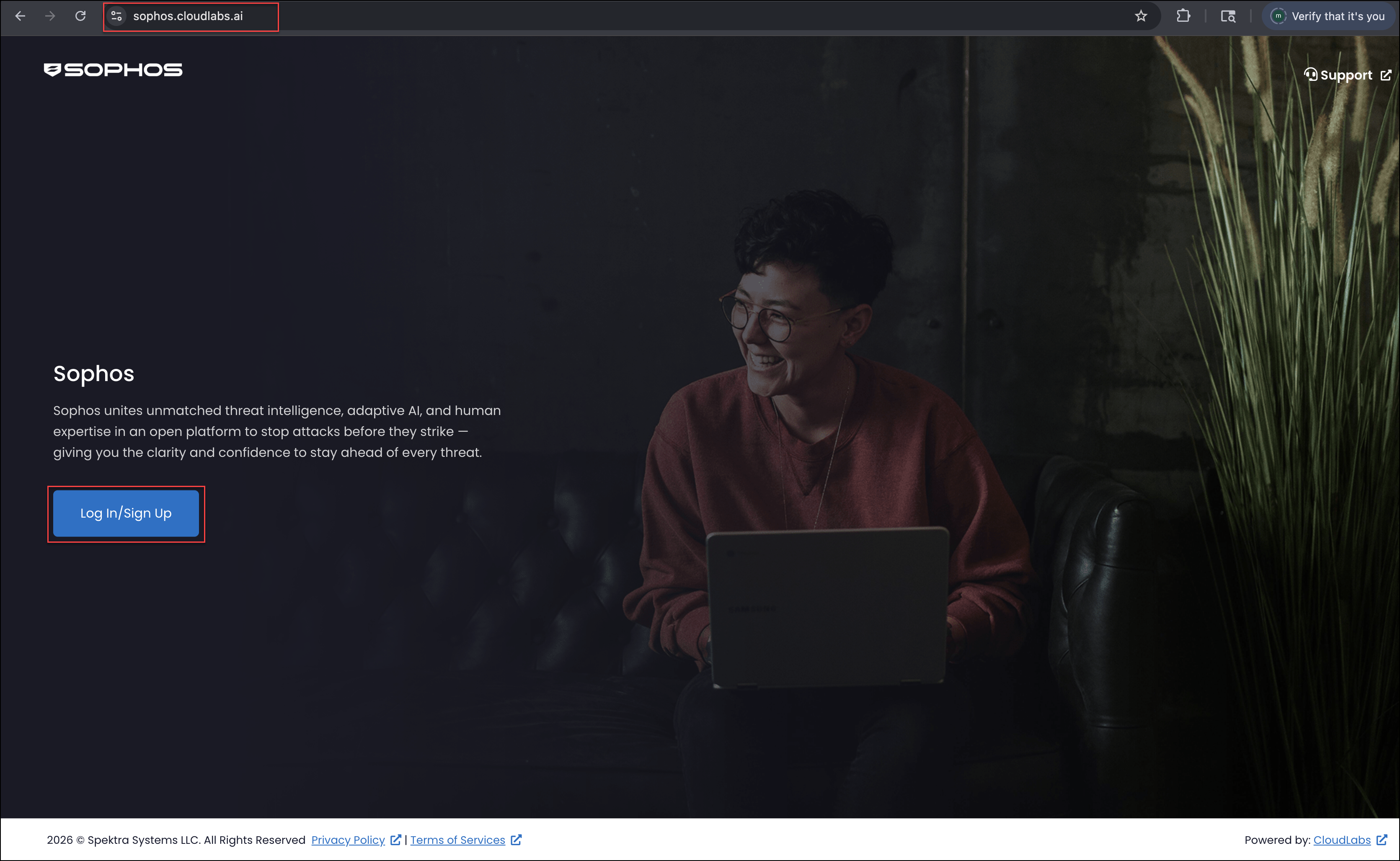
You can use any of the available options, including work, school, LinkedIn, or Gmail account for login/signup.
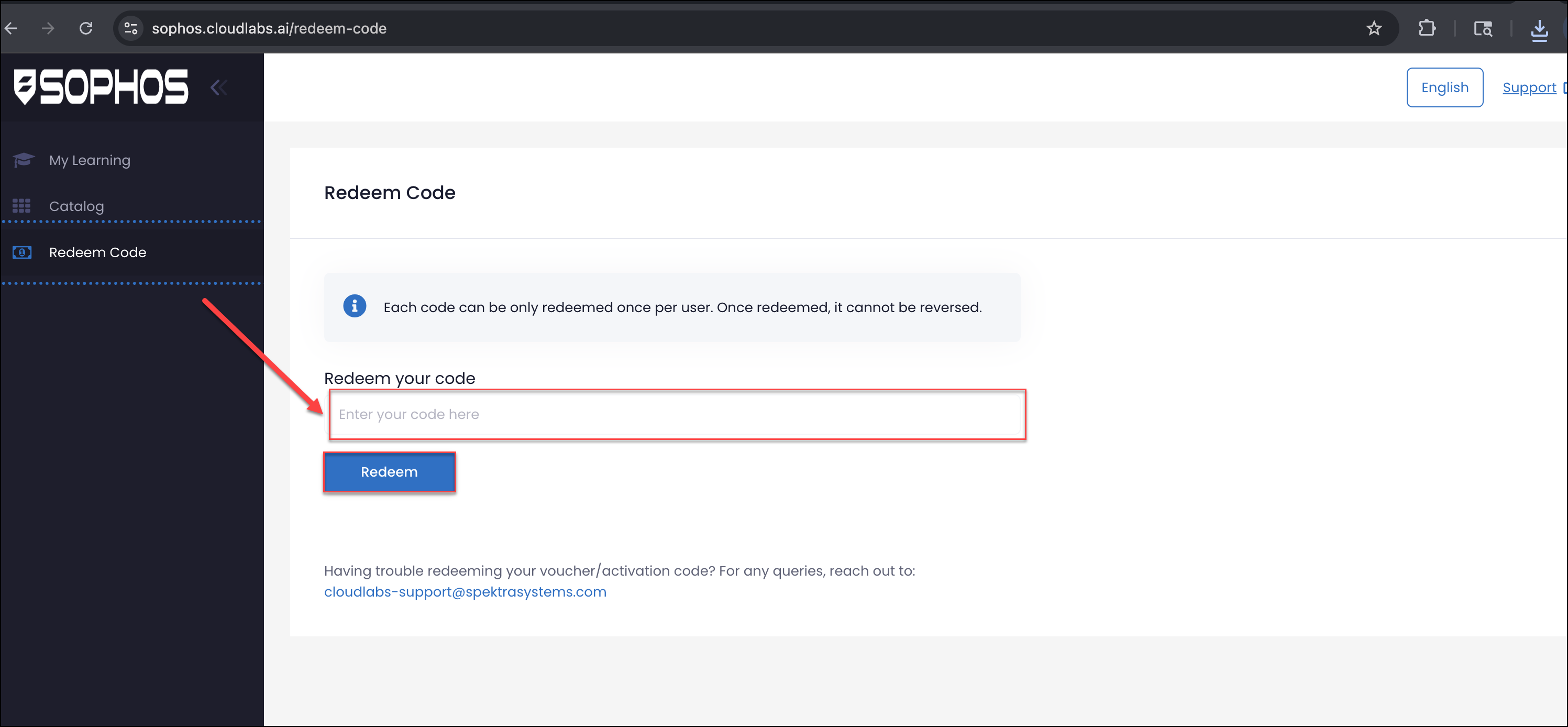
Once you are logged in, click on the Redeem Voucher tab, and enter your voucher code to redeem it.
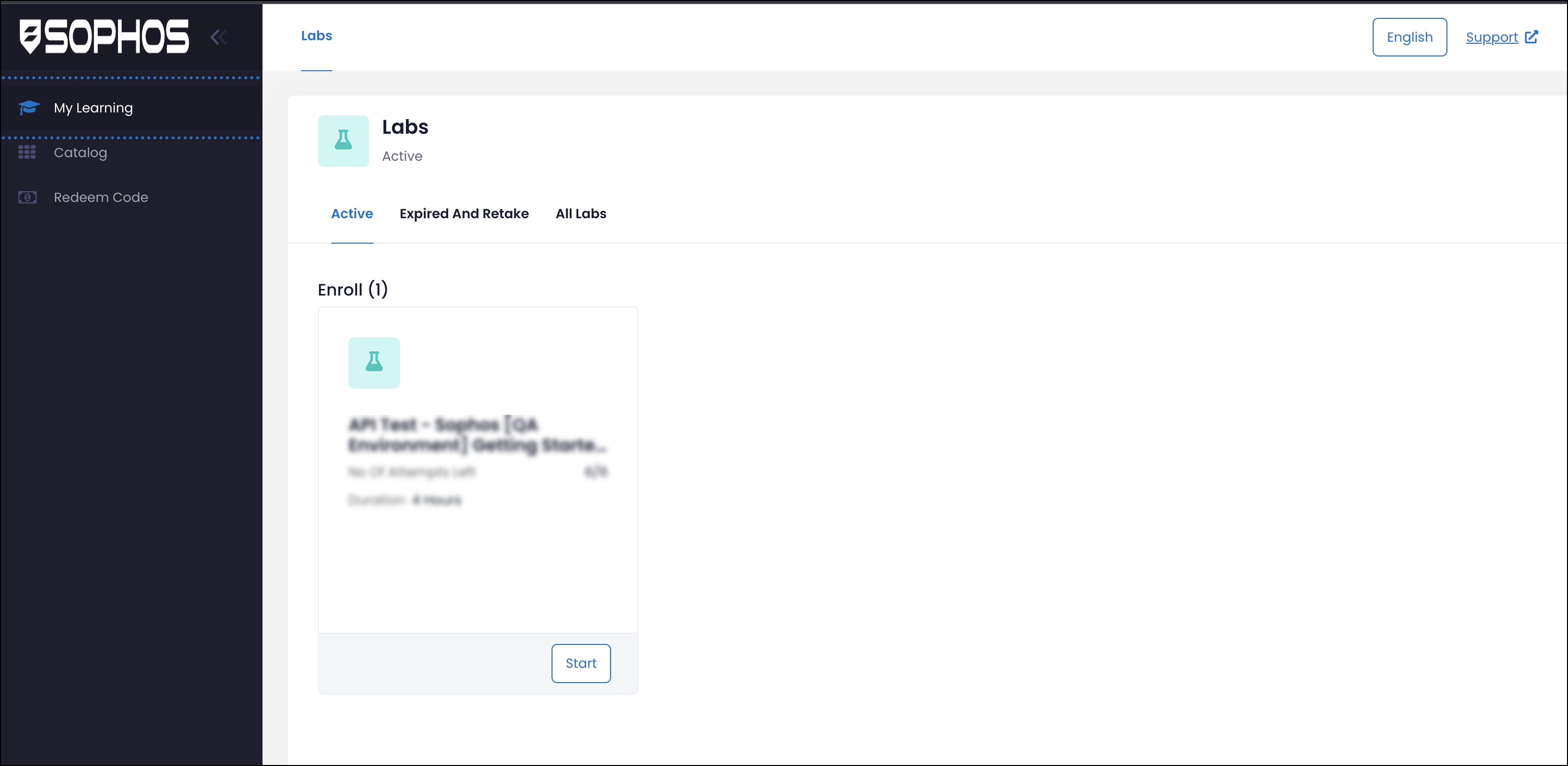
Navigate to My Learning Section. You will Find labs added under Active section click on Start to begin with the lab.
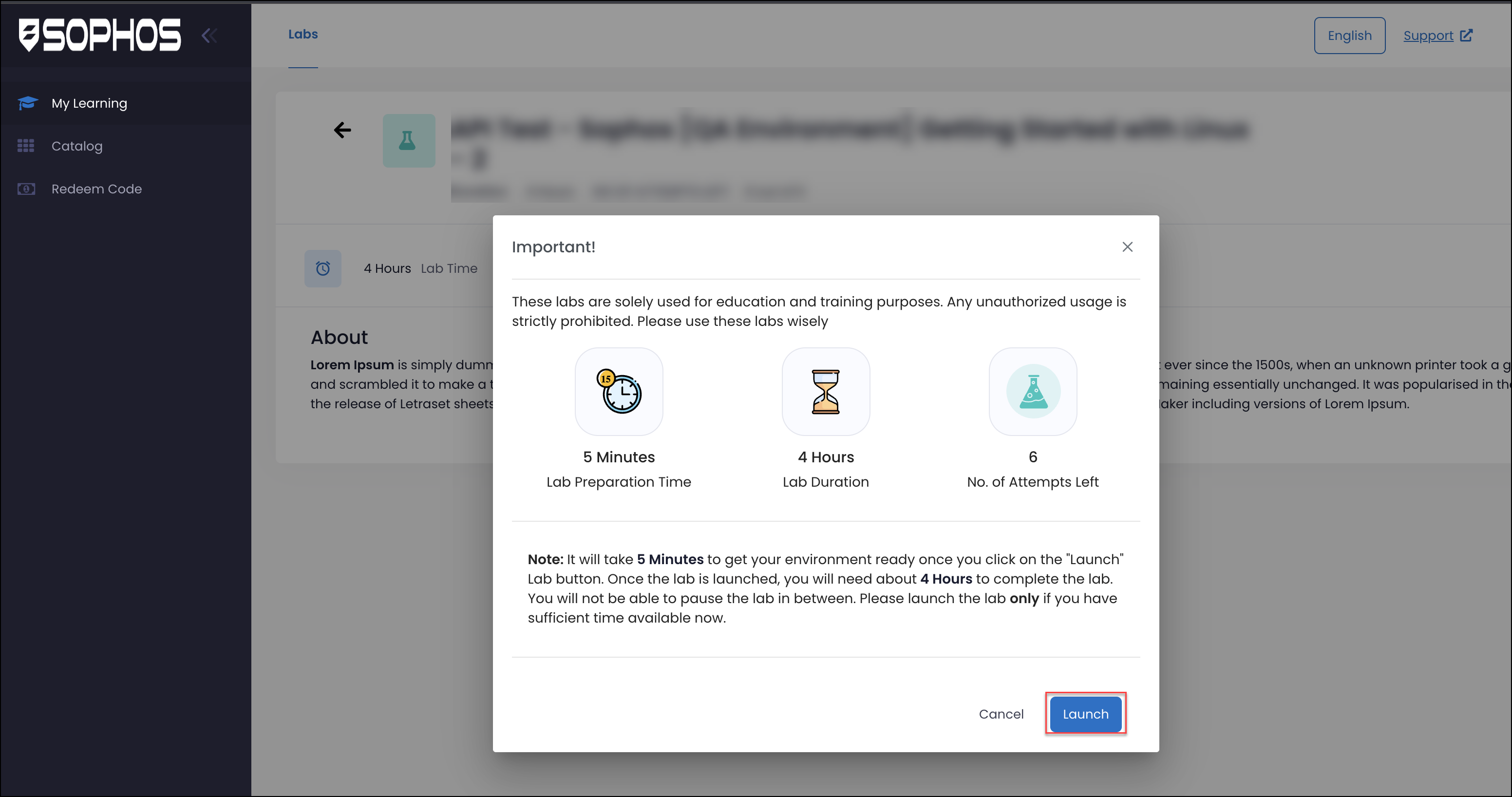
Read the instructions and click on launch button to get started with the lab.
Note: If you encounter any issues, double-check that you have entered the correct voucher code. If the issue persists, please send an email to labs-support@spektrasystems.com.